Note: You can change configuration settings for this tool in Run mode. However, these settings usually only persist for the current runtime session. When you close the CygNet Studio screen on which the tool resides, the tool settings may revert to those originally configured in Edit mode. To learn how to override this behavior, see RuntimeCfgAutoPersist.
This topic provides a basic workflow for configuring the Facility Navigation Bar Tool. The way that you configure the tool and your actual data determine exactly how the tool will look and work. While ActiveX properties are required to configure a functional tool, many standard properties are available.
You can use the Facility Navigation Bar Tool to set the [Facility] property of TheView for a templated screen. This allows the selected facility to determine the source of the data displayed on TheView. Set the [AutoRestart] property of the Facility Navigation Bar Tool to 1 - Yes. [AutoRestart] will then restart TheView and set its [Facility] property to match the facility selected in the Facility Navigation Bar Tool.
You can also use the Facility Navigation Bar Tool with a Group Grid Tool. The Facility Navigation Bar Tool then sets the Facility ID for each row in a grid based on a selected attribute. In this case, set [AutoRestart] to 0 - No, since clicking on a row in the Group Grid Tool will set the [Facility] property of TheView.
This topic includes the following sections:
To Configure the Facility Navigation Bar Tool
Note: You usually select Show Target when using the Facility Navigation Bar Tool with a templated screen. If the Facility Navigation Bar is being used with a Group Grid Tool, you do not usually select Show Target.
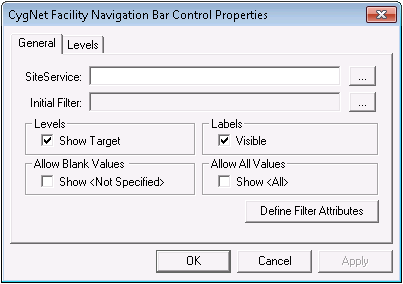
The following table describes General page properties:
| Property | Description |
|---|---|
|
SiteService |
[SiteService] identifies the CVS, Facility Service, or Group Service for the settings. The format for the value is Site.Service. If this field is blank, the Site.Service specified for TheView is used. If Site.Service is defined for both TheView and the object, the value specified for the object is used. |
|
Initial Filter |
Initial Filter defines a subset of facilities. If you are defining multiple levels, the Initial Filter is level 0, the leftmost drop-down level in the Facility Navigation Bar Tool. Additional filtering will begin with the level 0 filter. Creating an Initial Filter is an optional process. To learn about setting up this additional filter, see To Configure an Initial Filter in the Configuring the Initial Filter topic. |
|
Levels |
Select Show Target to display the target level, which is the rightmost level in the Facility Navigation Bar Tool. |
|
Labels |
Select Visible to display labels for levels, as specified by the Labels options on the Levels page. |
|
Allow Blank Values |
If Allow Blank Values is selected, the Not Specified option appears for the level and facilities can be displayed if no attribute value is specified. |
|
Allow All Values |
If Allow All Values is selected, the All option appears for the level and all attribute values available in the child level are displayed. Otherwise, only attribute values filtered by a parent level are displayed. |
|
Define Filter Attributes |
Click Define Filter Attributes to define attributes for the Initial Filter. To learn about setting up this additional filter, see To Define Filter Attributes in the Configuring the Initial Filter topic |

|
|
|

